

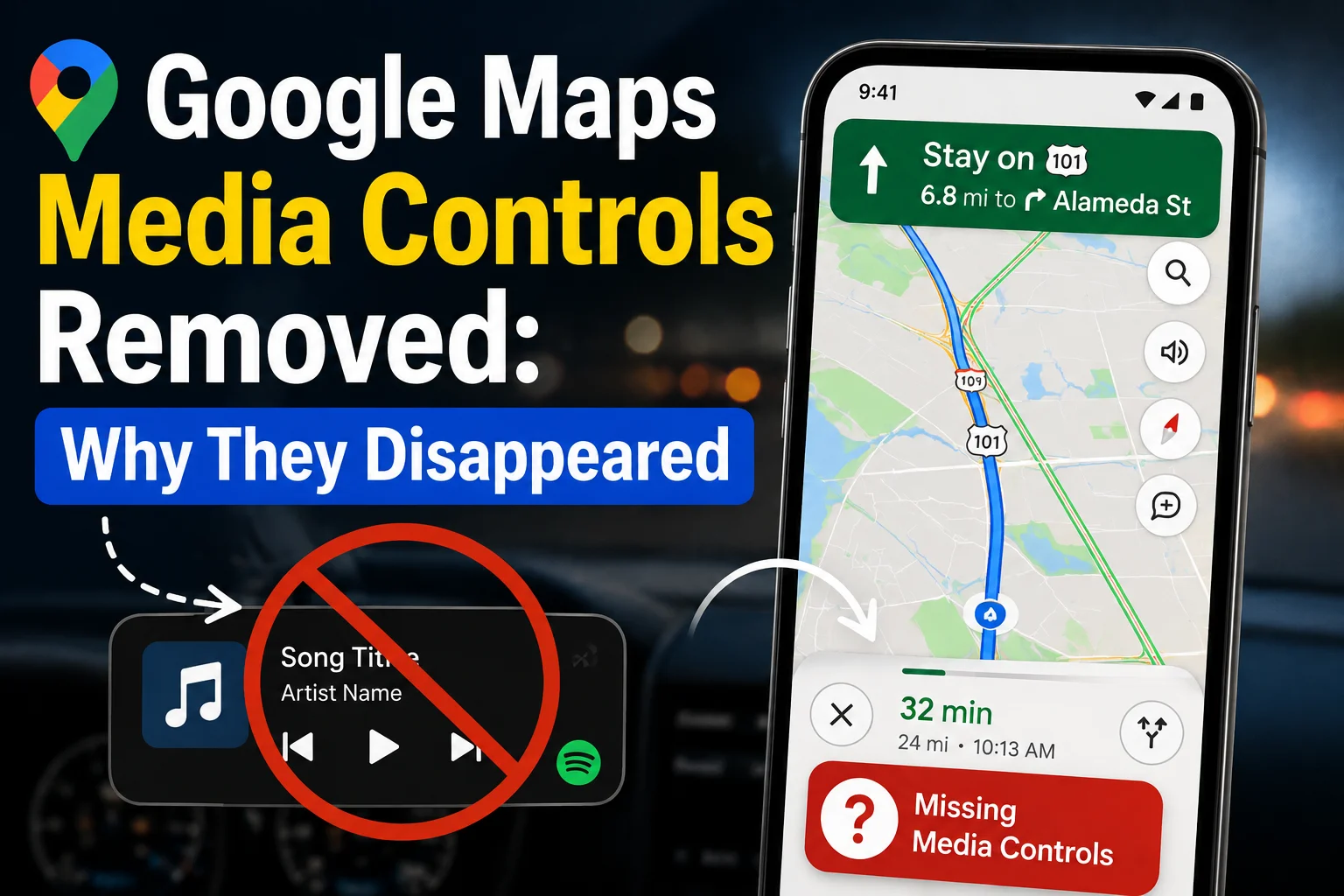
Google Maps has become an essential navigation tool for millions of drivers, but a change affecting its Android app caused confusion when familiar media controls suddenly disappeared. These controls previously allowed users to pause music, skip tracks, browse recommendations, and access their preferred music service without leaving the navigation screen.
For people who regularly use Google Maps while listening to music or podcasts, the change may seem relatively minor. However, removing convenient playback controls can make navigation less seamless. Understanding what happened, why the feature was useful, and what alternatives are available can help users adapt.
What Were Google Maps Media Controls?
Google Maps media controls were designed to make audio management easier while navigating. Instead of switching between Maps and a separate music application, users could access basic playback functions directly within the navigation interface.
Depending on the supported music service and device, the controls could allow users to:
- Play or pause audio
- Skip to another track
- Browse recommended content
- Open a connected music application
- Choose a preferred media service
- Manage playback without leaving the navigation screen
This integration was particularly convenient because users could keep their route visible while making simple changes to their audio.
Google Maps supported services such as Spotify and YouTube Music through its media playback integration. The feature could previously be managed through Google Maps navigation settings.
Why Did the Media Controls Disappear?
The sudden disappearance led some users to believe Google had permanently removed the feature. However, the situation was more complicated.
The media controls were reported as missing from certain Android versions of Google Maps, including version 25.28 and beta version 25.29. Google subsequently acknowledged the problem and indicated that it was working on an issue affecting media playback controls.
At the same time, Google was making broader changes to its driving and navigation experiences. Those changes created additional uncertainty and made it difficult for users to determine whether the missing controls were part of a planned redesign or simply a technical problem.
Why Do the Media Controls Matter?
Navigation and entertainment often go hand in hand, especially during longer journeys. Drivers may want to pause a podcast, skip a song, or change their audio without completely leaving the navigation screen.
Integrated controls made these actions more convenient by keeping essential playback functions inside Google Maps.
Without the feature, users may need to rely on other methods to control audio. That can make the overall experience feel less streamlined.
There is also an important safety consideration. Drivers should avoid manually interacting with their phones while a vehicle is moving. Searching for music, changing applications, or navigating through menus can distract attention from the road.
Voice commands, steering-wheel controls, and compatible vehicle systems are generally preferable when available.
Does the Issue Affect Every User?
No. The issue has mainly been associated with certain Android versions of Google Maps.
Reports indicated that the media controls could disappear for some Android users while remaining available on iOS. Experiences can also vary according to the Google Maps version, device, account, supported music application, and how Google distributes software changes.
What to Do If Google Maps Media Controls Are Missing
If the media controls are no longer visible in Google Maps, there are several reasonable troubleshooting steps to try.
1. Update Google Maps
Start by checking the Google Play Store for an available Google Maps update.
Updates can include bug fixes, compatibility improvements, and changes to navigation features. If Google has released a fix for the problem affecting media controls, installing the latest version may restore the functionality.
However, an update does not always guarantee an immediate change because Google can also enable features gradually through server-side updates.
2. Restart Google Maps
A basic app restart can sometimes resolve temporary interface problems.
Close Google Maps completely and reopen it before starting navigation again. Once navigation is active, check whether the media controls have returned.
Although this is a simple troubleshooting method, it can help when an app fails to load part of its interface correctly.
3. Review Navigation Settings
Media-related options have historically been available through Google Maps navigation settings.
Open Google Maps and check:
Profile picture → Settings → Navigation
The exact menu options may differ depending on the version of Maps and your device. If a media playback setting is available, make sure it is enabled.
If the setting has completely disappeared, your current version or account may not have access to the feature.
4. Check Your Music App
If you use Spotify, YouTube Music, or another supported service, make sure the application itself is installed, updated, and functioning properly.
Try starting audio playback before launching navigation. Then check whether Google Maps recognizes the active media session.
You should also check whether your phone restricts background activity for the music application, as aggressive battery-saving settings can sometimes interfere with background playback.
5. Use Android’s System Media Controls
Even without the dedicated Google Maps controls, Android may continue to provide media playback controls through the system interface when music or podcasts are playing.
The notification panel can provide basic playback functions on compatible devices.
For safety, however, drivers should configure their media before starting a trip and avoid manually handling their phones while driving.
Can Android Auto Provide an Alternative?
For vehicles that support Android Auto, the in-car interface can provide a more integrated way to combine navigation and entertainment.
Android Auto is designed to bring compatible phone applications into a vehicle’s display, allowing drivers to access supported navigation, music, communication, and other features.
This can be more convenient than relying entirely on a phone screen.
Features can vary depending on the vehicle, phone, region, and supported applications, so having Google Maps on an Android phone does not guarantee that every Android Auto function will be available.
What About Spotify and YouTube Music?
Spotify and YouTube Music were among the services associated with Google Maps’ media playback functionality.
The integrated controls made it possible to manage music while continuing to follow navigation directions. As a result, users of these services were especially likely to notice when the controls disappeared.
If your preferred music service no longer appears inside Maps, this does not necessarily mean that the music application itself is malfunctioning. The problem may be limited to the integration between the service and Google Maps.
Checking the music application separately can help determine whether playback works normally outside Maps.
Are Google Maps Media Controls Permanently Gone?
It is important to distinguish between a temporary technical issue and a permanent feature removal.
At the time the controls disappeared, Google described the situation as an issue and indicated that it was working on a fix. Therefore, users should be cautious about treating the disappearance as proof that Google has permanently discontinued media controls.
Google regularly experiments with its applications, changes interfaces, and rolls out features gradually. A feature can temporarily disappear because of a bug, testing, compatibility problems, or a broader software change.
Unless Google officially announces a permanent retirement, the safest assumption is that availability may change as future updates are released.
Why Google Is Changing the Navigation Experience
Google Maps has evolved from a simple navigation application into a broader connected driving platform.
Modern drivers often expect navigation to work alongside music, podcasts, phone calls, voice assistants, and vehicle systems. This creates a challenge for Google: Maps needs to remain focused on navigation while still providing useful access to related functions.
Media controls are a good example of this balance.
When implemented effectively, they allow drivers to manage essential audio functions without leaving the route screen. When interfaces become too complicated, however, they can potentially introduce additional distractions.
Driver Safety Should Come First
Although missing media controls can be frustrating, restoring the feature should never involve experimenting with a phone while driving.
Before starting a journey, set up your navigation and choose your music or podcast. If you need to make a change, use voice commands, steering-wheel controls, or a compatible vehicle interface where available.
If manual interaction is necessary, pull over in a safe and legal location before using the phone.
No navigation or entertainment feature is worth compromising road safety.
What Should Users Expect Next?
The Google Maps media-control issue demonstrates how quickly mobile applications can change.
A feature that users have relied on for years can disappear after an update. Sometimes the change is intentional, while in other cases it can result from a bug, testing, staged rollout, or compatibility issue.
For users experiencing missing media controls, keeping Google Maps updated and checking official Google information is generally the most sensible approach. Installing questionable third-party applications or unofficial modifications is unnecessary and can create additional problems.
Final Thoughts
The Google Maps media controls removed issue caused understandable frustration among Android users who relied on quick access to music and podcast playback while navigating.
The integrated controls were useful because they allowed basic actions such as pausing, skipping, and switching media without requiring users to leave the navigation interface.












NCEdCloud: Secure Access for Students & Educators - Football club menu
[…] system allows users to sign in through one main portal. After authentication, they can access the applications available to their account. Access depends on the user’s […]